If you use ChatGPT regularly, you may have noticed that some tasks are too big for a single conversation.
Maybe you’re working on a blog, studying for an exam, researching a topic, or managing a project that takes several days. In situations like these, starting a new chat every time can become frustrating because you may need to explain the same background again.
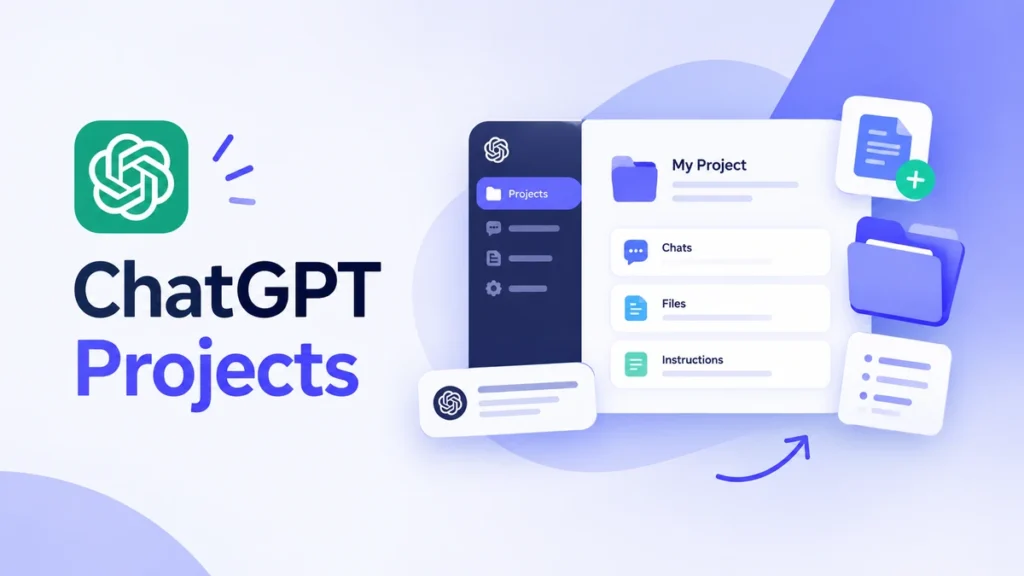
ChatGPT Projects are designed to make this kind of ongoing work easier.
A Project gives you a dedicated space where you can keep related chats, files, and instructions together. This allows you to continue working on the same goal without keeping everything scattered across separate conversations.
In this guide, we’ll explain what ChatGPT Projects are, how Projects work, how to create one, what you can use them for, and when a Project is actually useful.
What Is ChatGPT Projects?
ChatGPT Projects are dedicated workspaces inside ChatGPT for organizing work around a specific goal.
A Project can bring together related chats, files, and custom instructions so that ChatGPT has the right context when you’re working on that particular task.
For example, imagine you’re running a blog.
Instead of keeping your keyword research in one chat, article drafts in another, and writing instructions somewhere else, you could create a Project for your website and keep the relevant material together.
You could then use different conversations inside that Project for:
- Keyword research
- Article outlines
- Content writing
- Editing
- Research
- Content planning
This is especially useful for work that continues over time rather than ending after one question.
How Do Projects Work in ChatGPT?
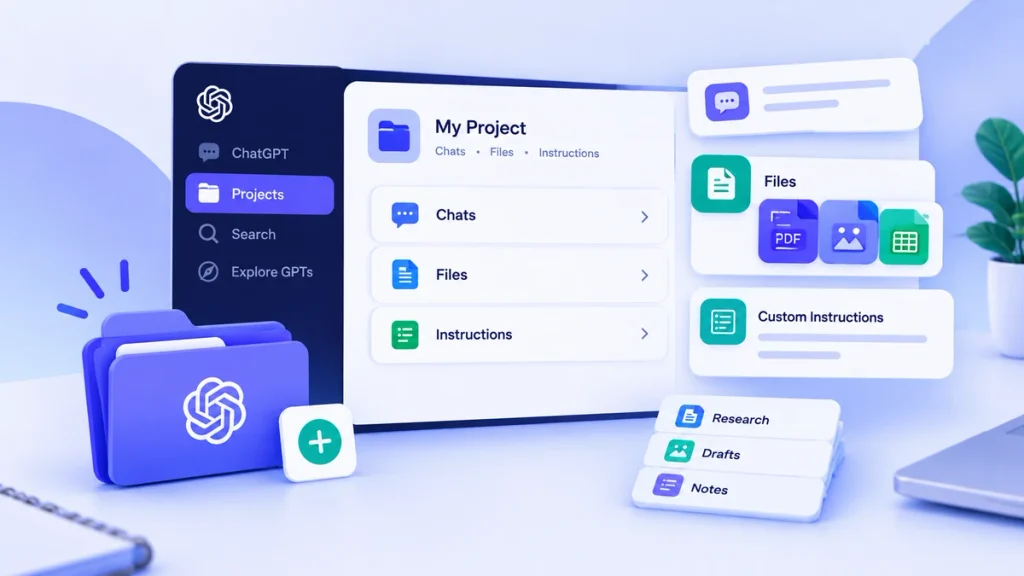
The easiest way to understand Projects is to think of them as organized workspaces for ongoing ChatGPT tasks.
A Project can contain several types of information.
Chats
You can have multiple conversations related to the same Project.
For example, if you create a Project for studying biology, one chat could be used for explaining chapters, another for practice questions, and another for revision.
Keeping these conversations under the same Project makes it easier to continue working on the same subject.
Files
You can also add relevant files to a Project.
Depending on the supported file types and your plan, these might include documents, PDFs, spreadsheets, images, and other useful material.
For example, a student could add lecture notes, while a blogger could add research documents and previous drafts.
The purpose is to give ChatGPT useful information that it can refer to while you’re working inside the Project.
Project Instructions
Projects can also have their own instructions.
These instructions tell ChatGPT how you want it to respond within that particular Project.
For example, you might write:
“Keep explanations simple and give examples when useful.”
For a writing Project, you could specify your preferred tone, formatting, or writing style.
This means you don’t have to repeat the same instructions every time you start a new conversation within the Project.
How to Create a Project in ChatGPT
Creating a Project is relatively simple.
Step 1: Open ChatGPT
Open ChatGPT and look at the sidebar.
The exact interface can change as ChatGPT is updated, but Projects are accessed from the ChatGPT workspace/sidebar when available for your account.
Step 2: Select New Project
Choose New project.
You can then give your Project a name and customize its appearance with an icon or color.
Choose a name that clearly describes what the Project is about.
For example:
- My Freelancing Business
- Blog Content 2026
- Biology Study
- Client Website
- Travel Planning
A clear name makes it easier to find the right Project later.
Step 3: Add Your Files and Instructions
Once your Project is created, add the information you’ll need regularly.
You might add:
- Reference documents
- Notes
- Previous drafts
- Research files
- Project instructions
You can also move eligible existing chats into a Project, which can be useful if you’ve already started working on the topic in another conversation.
Step 4: Start a Conversation
Now you can start a new conversation inside your Project.
Because the Project contains relevant context, you can continue your work without rebuilding everything from the beginning.
What Can You Use ChatGPT Projects For?
Projects are most useful when you have a task that requires continuity.
Here are some practical examples.
1. Blogging and Content Writing
If you manage a website, you could create a Project specifically for your content.
You might keep:
- Keyword research
- Content ideas
- Previous articles
- Writing guidelines
- Research notes
- Content plans
You could then create separate chats for researching topics, creating outlines, writing articles, and editing them.
This can make a long-term content workflow much easier to manage.
2. Studying
Students can create a Project for a particular subject.
For example, you could create a chemistry Project and add your lecture notes and other study material.
You could then ask ChatGPT to:
- Explain difficult concepts
- Summarize notes
- Create practice questions
- Test your understanding
- Help you review before an exam
If you’re interested specifically in using ChatGPT as a study tool, you can also read our guide on How to Use ChatGPT Study Mode.
3. Research
Projects can be useful for research that takes more than one conversation.
You could keep your research notes, reference documents, questions, and related discussions in one place.
For example, someone researching a new business idea could create a Project containing:
- Market research
- Competitor notes
- Business ideas
- Reference documents
- Questions to investigate
As the research develops, new conversations can remain connected to the same Project.
4. Freelancing and Client Work
Freelancers can also use Projects to organize work for individual clients.
For example, you could create a separate Project for a website client and keep relevant information there.
This could include:
- Client requirements
- Project instructions
- Reference files
- Drafts
- Notes
- Previous conversations
Instead of searching through many unrelated chats, you have a dedicated workspace for that client.
What Is Project Memory in ChatGPT?
One of the useful aspects of Projects is that ChatGPT can use relevant information from the Project when you’re working inside it.
Project memory settings can vary depending on your account and current ChatGPT setup.
For example, project-only memory is designed to keep the context of a Project within that Project.
This can be useful when you want separate areas of work to remain independent.
Imagine you have one Project for your university studies and another for your freelance business.
Keeping those areas separate can prevent unrelated context from becoming part of the same workflow.
What Is Project-Only Memory?
Project-only memory is an option designed to keep a Project’s conversational context self-contained.
When it is available and enabled, chats within that Project can use relevant information from other conversations in the same Project, rather than relying on conversations outside the Project.
This can be useful when you’re working with sensitive or highly specific project context and want to maintain a clear boundary between different areas of work.
The memory options available to you can depend on your ChatGPT account and settings.
How Many Projects Can You Create in ChatGPT?
You can use Projects to organize different areas of your work.
For example, you could have separate Projects for:
- Blogging
- Freelancing
- Studying
- A specific client
- Business planning
- Research
However, Project limits and file allowances can depend on your ChatGPT plan and current product settings.
Because OpenAI can change these limits over time, it’s better to check the limits shown in your own ChatGPT account rather than relying on an old number from a third-party website.
The important point is that Projects are intended to let you organize ongoing work into separate spaces.
Can You Share a ChatGPT Project?
ChatGPT also supports Project sharing in supported accounts and workspaces.
A shared Project can allow people to work together using the same Project context.
For example, a small team working on a marketing campaign could keep relevant conversations, files, and instructions in one shared Project.
This can reduce the need to send the same documents and background information separately to every person working on the task.
The exact sharing options and permissions can vary depending on the account and current ChatGPT features.
ChatGPT Projects vs Regular Chats
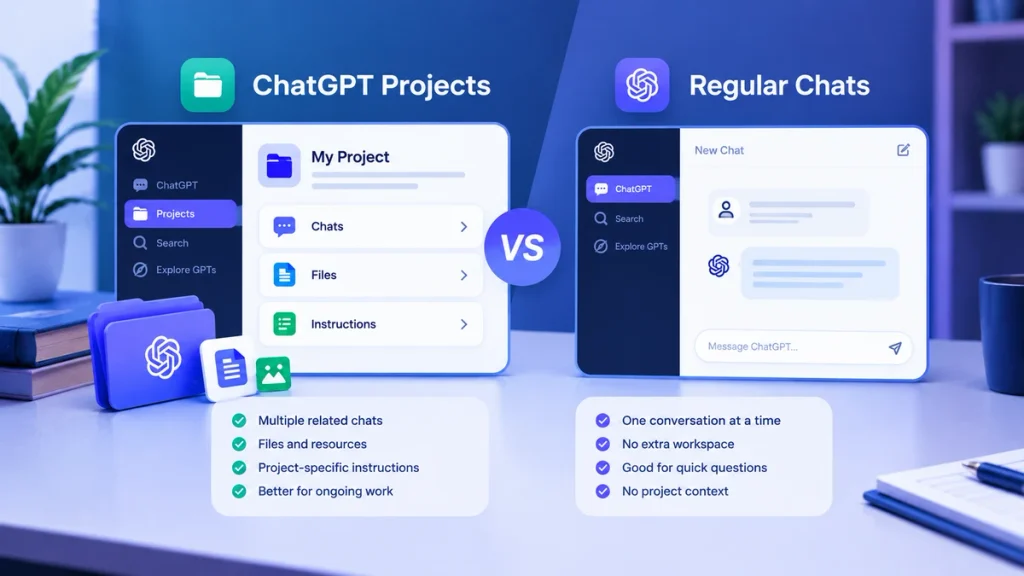
You may wonder why you should create a Project instead of simply opening another chat.
The difference mainly comes down to organization and ongoing context.
| Regular Chat | ChatGPT Project |
|---|---|
| Useful for quick questions | Useful for ongoing work |
| Usually focused on one conversation | Organizes multiple related conversations |
| Good for one-off tasks | Good for recurring workflows |
| Context is centered around the conversation | Project can contain additional context |
| No dedicated Project workspace | Dedicated workspace for a specific goal |
If you only want to ask a quick question, a regular chat is usually enough.
But if you expect to return to the same topic repeatedly, a Project can make the work easier to organize.
ChatGPT Projects vs Custom GPTs
Projects and Custom GPTs can seem similar, but they serve different purposes.
A Project is primarily a workspace for ongoing work.
A Custom GPT, on the other hand, is a customized version of ChatGPT that can be configured around particular instructions, knowledge, and capabilities.
For example, you might create a Project for your blog where you keep your research, drafts, and content instructions.
A Custom GPT could instead be created as a reusable assistant for a particular type of task.
So, if your main need is keeping a long-term project organized, Projects make more sense.
If your main need is creating a reusable customized assistant, a Custom GPT may be more appropriate.
When Should You Use a ChatGPT Project?
A Project can be useful if you can answer yes to questions like:
- Will I return to this task later?
- Do I have several files related to it?
- Do I use the same instructions repeatedly?
- Does the task involve multiple conversations?
- Do I need ChatGPT to understand the same background over time?
- Am I working with other people?
If several of these apply, a Project may be worth creating.
For a simple one-time question, however, creating a Project may not add much value.
When You Probably Don’t Need a Project
Not every task needs a dedicated workspace.
For example, you probably don’t need a Project just to ask ChatGPT:
“Give me three breakfast ideas.”
Or:
“Explain what photosynthesis means.”
These are simple tasks that don’t require a lot of ongoing context.
Projects become more useful when the same information, files, or instructions will be needed repeatedly.
The goal isn’t to put every ChatGPT conversation into a Project. It’s to use Projects when organization and continuity actually make your work easier.
Tips for Using ChatGPT Projects Effectively
Once you create a Project, a few simple habits can help you keep it organized.
Give Your Project a Clear Name
Use a name that immediately tells you what the Project is about.
For example:
Blog Content 2026
is more useful than:
My Project
Add Only Relevant Files
You don’t need to upload every document you have.
Add files that are actually connected to the Project.
This keeps the workspace more focused.
Use Project Instructions
If you repeatedly give ChatGPT the same instructions, consider adding them to the Project instead.
This can save time when starting new conversations.
Keep Unrelated Work Separate
A Project for studying and a Project for freelancing don’t need to share the same context.
Separate Projects can make it easier to keep each workflow focused.
Review Old Information
If a Project contains information that is no longer relevant, update it.
For example, if your Project contains an old content plan, replacing it with the current version can help keep your workflow organized.
Final Thoughts
So, what is ChatGPT Projects?
It is a dedicated workspace inside ChatGPT where you can organize related conversations, files, instructions, and ongoing work around one goal.
For someone who only uses ChatGPT for quick questions, a regular chat may be enough.
But if you’re working on a blog, studying, researching a topic, managing freelance work, or handling a longer project, keeping everything in one dedicated workspace can make the process much easier.
The biggest benefit is simple: you don’t have to keep rebuilding the same context every time you return to your work.
Instead, you can create a Project, add the information you need, and continue from there.
If you’re exploring more ways to use ChatGPT, you can also read our guides on ChatGPT Search and ChatGPT Study Mode