
If you use ChatGPT mainly to get quick answers, you may not realize that it can also help you learn a topic step by step.
That is where ChatGPT Study Mode comes in.
Instead of simply giving you an answer, Study Mode is designed to guide your thinking, ask questions, explain difficult ideas in stages, and check whether you actually understand the material. You can use it for homework, exam preparation, reviewing notes, practicing questions, or learning something from scratch.
In this guide, you’ll learn how to use ChatGPT Study Mode, what it can do, how to write better prompts, how to study with PDFs and notes, and what limitations you should know before relying on it.
Note: If you’re new to ChatGPT, you can also read our ChatGPT Review 2026 to learn about its broader features, pricing, and limitations.
What Is ChatGPT Study Mode?
ChatGPT Study Mode is a learning experience designed to help users build a deeper understanding of a subject rather than simply receiving a final answer.
When Study Mode is active, ChatGPT can ask questions about what you already know, break complicated topics into smaller parts, provide hints, and check your understanding along the way. It can also adjust explanations based on your level and the type of help you need.
For example, instead of asking:
“What is photosynthesis?”
you could ask Study Mode to teach you photosynthesis as a beginner and quiz you after each section.
That changes the interaction from simply getting information to actually working through the topic.
OpenAI describes Study Mode as using techniques such as Socratic-style questioning, scaffolded explanations, knowledge checks, and personalized guidance.
Who Can Use ChatGPT Study Mode?
According to OpenAI’s current Help Center documentation, Study Mode is available globally across ChatGPT plans on web, iOS, and Android, and it works with the models available to you.
The exact interface can vary depending on your device or app version, so you may not see every option in exactly the same place.
Study Mode is particularly useful for:
- School and college students
- People preparing for exams
- Anyone learning a new subject
- Beginners learning technical topics
- People reviewing notes or course material
- Learners who want practice questions
- Anyone who prefers guided explanations instead of quick answers
How to Turn On ChatGPT Study Mode
Turning on Study Mode is fairly simple
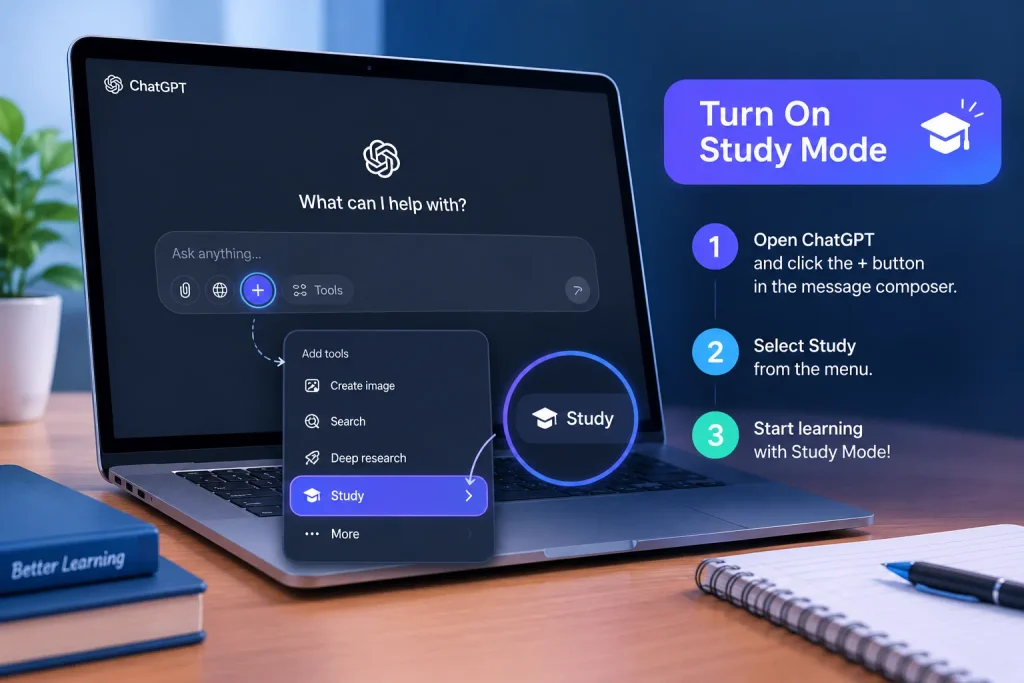
.
On the Web
Start a regular ChatGPT conversation and use the Study option from the tools available in the message composer.
OpenAI’s current instructions also say that you can type @study in the message composer or use the + menu and search for Study. You can also access Study Mode directly through chatgpt.com/studymode.
On iPhone and Android
Open a regular ChatGPT conversation, select the + button, and look for Study in the available tools.
The menu can look different depending on the app version, so if you don’t see it immediately, use the search option in the tools menu.
Once Study Mode is selected, you can start asking questions normally.
How to Use ChatGPT Study Mode Step by Step
Simply turning Study Mode on isn’t enough to get the best results. Your first message should give ChatGPT some useful context.
A good study prompt usually includes:
- Your education level
- The subject you’re studying
- The specific topic
- What you already understand
- What you want to achieve
- Your available study time
- Any relevant notes or study material
For example:
“I’m a beginner learning basic economics. I have an exam next week. Teach me supply and demand step by step, ask me questions as we go, and quiz me at the end.”
This is much more useful than simply saying:
“Explain economics.”
The more clearly you describe your goal, the easier it is for Study Mode to structure the session around what you actually need.
What Can You Use ChatGPT Study Mode For?
Study Mode isn’t limited to one type of schoolwork. You can use it in several different ways.
1. Learn a New Topic
If you’re starting from zero, ask ChatGPT to begin with the basics.
For example:
“I’m completely new to biology. Teach me cell structure from the beginning. Don’t assume I know advanced terms.”
Study Mode can start with a simpler explanation and add more detail as you progress. You can also ask it to slow down, provide an analogy, or explain something in simpler language.
2. Prepare for an Exam
You can turn Study Mode into a practice tutor.
For example:
“I have a biology exam next Friday. Quiz me one question at a time on cell biology. Don’t show the answer until I attempt each question.”
This approach makes you actively recall information rather than just reading explanations.
Study Mode can provide open-ended questions, feedback, and knowledge checks to help you identify areas that need more review.
3. Understand Difficult Concepts
Sometimes you know the topic but one particular idea doesn’t make sense.
Instead of asking for the answer, tell ChatGPT where you’re stuck.
For example:
“I understand basic algebra, but I don’t understand why we change the sign when moving a term to the other side. Explain the reasoning with a simple example.”
This gives Study Mode a specific problem to work on.
4. Practice Problems
Study Mode can also help you practice.
You can ask it to:
- Give you one question at a time
- Wait for your answer
- Tell you whether your reasoning is correct
- Explain mistakes
- Increase the difficulty gradually
- Give you a similar problem afterward
This is especially useful for subjects such as mathematics, science, programming, economics, and languages.
How to Study With PDFs, Notes, and Images
One useful part of Study Mode is that you can work with your own study materials when file and image uploads are available in your ChatGPT conversation.
You can upload things such as:
- Class notes
- PDFs
- Worksheets
- Slides
- A syllabus
- Textbook excerpts
- Photos of questions or problems
You can then tell ChatGPT exactly what you want to do with the material.
For example:
“I uploaded my lecture notes. Explain the first three concepts in simple language, then quiz me on them.”
Or:
“Use this PDF to create a 7-day study plan for my exam.”
If ChatGPT misses something in an image or file, OpenAI recommends uploading a clearer version, pasting the important text, or specifying the exact page, section, or question you want it to use.
How to Write Better Study Mode Prompts
You don’t need complicated prompt formulas to use Study Mode effectively.
A simple structure works well:
Your level + topic + goal + preferred learning method
For example:
“I’m a first-year college student learning statistics. I understand mean and median but struggle with standard deviation. Teach it with simple examples, then give me two practice questions.”
You can also tell Study Mode how you want the session to work.
Try prompts such as:
- “Ask me one question at a time.”
- “Don’t give me the answer immediately.”
- “Give me a hint if I get stuck.”
- “Explain this like I’m a complete beginner.”
- “Use a real-world example.”
- “Test me after each section.”
- “Increase the difficulty gradually.”
- “Tell me which topics I should review again.”
These instructions make the session more interactive.
How to Use Study Mode for Homework
Study Mode can be useful when you are stuck on homework, but it is better to use it for understanding rather than simply copying an answer.
For example, instead of:
“Solve this entire problem for me.”
Try:
“Help me solve this problem step by step. Ask me what I think the next step is before explaining it.”
This gives you a chance to work through the problem yourself.
For graded assignments, you should also follow your school’s or instructor’s rules about AI use. OpenAI specifically recommends following the applicable academic or organizational AI-use policies.
ChatGPT Study Mode vs Regular ChatGPT
The biggest difference is the learning approach.
Regular ChatGPT can answer a question directly. Study Mode is designed to make the interaction more guided.
| Regular ChatGPT | Study Mode |
|---|---|
| Often gives a direct answer | Guides you toward understanding |
| Useful for quick information | Useful for structured learning |
| Can explain a topic | Can explain and check understanding |
| You control the conversation | More guided questioning |
| Good for many everyday tasks | Focused on learning and practice |
This doesn’t mean Study Mode will always refuse to give you an answer. OpenAI notes that it can sometimes provide a direct answer, so you can tell it to use hints, questions, or step-by-step guidance when you want a more interactive session.
Can ChatGPT Study Mode Help With Exam Preparation?
Yes. Exam preparation is one of the main use cases for Study Mode.
You can use it to:
- Review important concepts
- Create practice questions
- Take quizzes
- Find gaps in your understanding
- Explain incorrect answers
- Review uploaded notes
- Build a study plan
- Practice before an exam
A useful prompt could be:
“I have three days before my exam. Here are my notes. Identify the main topics, create a study plan, and quiz me on each topic.”
You can also ask it to focus on your weakest areas instead of repeatedly reviewing things you already understand.
Common Mistakes to Avoid
Relying on Every Answer Without Checking
ChatGPT can make mistakes, including in Study Mode. OpenAI’s documentation specifically advises users to double-check important information.
For important academic topics, compare explanations with your textbook, course material, teacher’s instructions, or other reliable sources.
Writing Extremely Vague Prompts
“Teach me math” gives very little information.
A better prompt explains your level, topic, and goal.
Letting ChatGPT Do All the Thinking
If you always ask for the final answer, you lose much of the benefit of a learning-focused workflow.
Ask for hints, examples, questions, and practice instead.
Uploading Poor-Quality Material
If a scanned PDF or photo is difficult to read, Study Mode may not interpret it correctly. Use a clearer file or provide the relevant text when necessary.
Is ChatGPT Study Mode Free?
Study Mode is currently available across ChatGPT plans, including Free, according to OpenAI’s current Help Center documentation. However, the same plan, model, message, and rate-limit rules that apply to ChatGPT also apply when using Study Mode.
In other words, Study Mode does not give you unlimited access or bypass normal usage limits.
Limitations of ChatGPT Study Mode
Study Mode can be useful, but it isn’t a replacement for a teacher, tutor, textbook, or course.
There are a few important limitations to remember:
- It can still make factual mistakes.
- Its guidance may not always behave consistently.
- It may sometimes give a direct answer instead of guiding you.
- File and image features depend on what’s available in your chat.
- Usage limits still apply.
- It cannot replace your school’s academic requirements.
- You should verify important information independently.
OpenAI also describes Study Mode as an evolving feature and notes that mistakes or inconsistent behavior can occur across conversations.
A Simple ChatGPT Study Mode Workflow
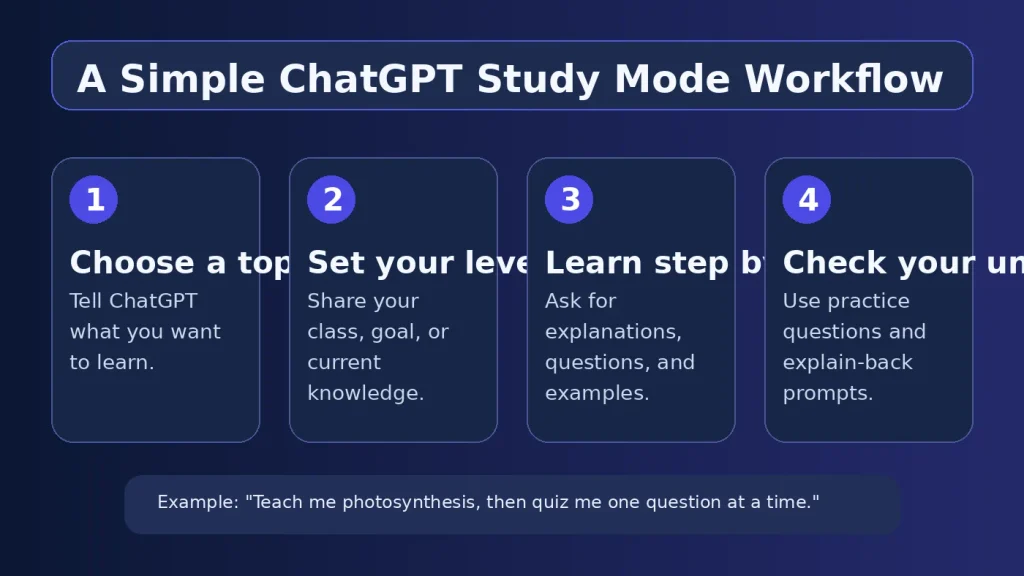
If you’re not sure where to start, try this five-step workflow:
Step 1: Set your goal
Tell ChatGPT exactly what you want to learn.
Step 2: Give it context
Mention your level and what you already understand.
Step 3: Add your materials
Upload notes, a PDF, a worksheet, or other relevant material when useful.
Step 4: Learn actively
Ask for questions, hints, examples, and practice rather than only explanations.
Step 5: Test yourself
Finish the session with a quiz or ask ChatGPT to identify the topics you still need to review.
This makes Study Mode more useful than treating it like a search box.
FAQs About ChatGPT Study Mode
What is ChatGPT Study Mode used for?
ChatGPT Study Mode is designed for learning, homework help, exam preparation, concept explanations, practice questions, and reviewing study materials.
How do I turn on Study Mode in ChatGPT?
On the web, you can type @study in the message composer or use the + menu to find Study. You can also visit chatgpt.com/studymode. On mobile, open a regular conversation and find Study through the + tools menu.
Can ChatGPT Study Mode quiz me?
Yes. You can ask Study Mode to quiz you one question at a time, provide feedback, explain mistakes, and create practice questions or flashcard-style reviews.
Can I upload a PDF to ChatGPT Study Mode?
Yes, when file uploads are available in your conversation. You can upload notes, PDFs, worksheets, slides, or other study materials and ask ChatGPT to use them while helping you learn.
Is ChatGPT Study Mode available for free users?
Yes. OpenAI’s current documentation says Study Mode is available globally across ChatGPT plans. Normal usage and rate limits still apply.
Can Study Mode replace a teacher?
No. It can act as a useful study aid, but it can make mistakes and does not replace your teacher, course materials, or academic requirements.
Final Thoughts
ChatGPT Study Mode is most useful when you treat it as a learning partner rather than an answer machine.
You can use it to understand difficult concepts, practice questions, review notes, prepare for exams, and work through problems step by step. The quality of the experience also depends on how clearly you explain your level, goal, and preferred way of learning.
If you’re new to ChatGPT, start with one small topic rather than trying to study an entire subject at once. Give Study Mode some context, ask it to guide you, attempt the questions yourself, and check the information against your course materials when accuracy matters.
That approach can make ChatGPT much more useful for actual learning—not just getting quick answers.