ChatGPT can be useful without any customization, but its default communication style may not always feel right for you.
Maybe you want shorter answers. Maybe you prefer a warmer and more conversational tone. Or perhaps you use ChatGPT for work and want its responses to sound more professional.
You can adjust the way ChatGPT communicates with you.
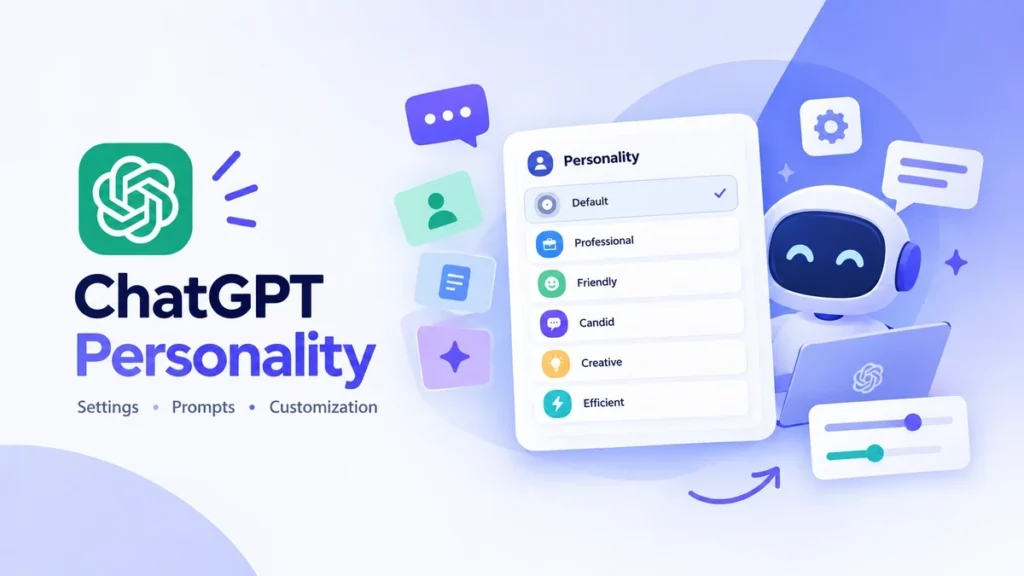
ChatGPT includes built-in personality settings, and you can also use Characteristics and your own instructions to personalize the experience further.
In this guide, you’ll learn how to give ChatGPT a personality, how to change its personality settings, what the different options mean, and how to create a more personalized response style with prompts.
What Does It Mean to Give ChatGPT a Personality?
Giving ChatGPT a personality doesn’t mean turning it into a different AI model.
Instead, you’re changing the style and tone of its responses.
For example, you might want ChatGPT to communicate in a:
- Professional style for work
- Friendly style for everyday conversations
- Direct style when you need quick answers
- Candid style when you want straightforward feedback
- Playful style for brainstorming
- Concise style for technical tasks
OpenAI describes personality as the style and tone ChatGPT uses when responding. Changing the personality does not change what ChatGPT can or cannot do, and it does not change its safety rules.
So, choosing a different personality changes the way an answer is presented rather than giving ChatGPT new abilities.
How to Give ChatGPT a Personality
There are several ways to personalize ChatGPT.
The simplest option is to choose a built-in personality through the Personalization settings.
You can then use Characteristics or your own instructions to fine-tune the way ChatGPT responds.
How to Change ChatGPT’s Personality
On the web version of ChatGPT:
- Open ChatGPT.
- Select your profile icon in the bottom-right corner.
- Select Personalization.
- Find Base style and tone.
- Choose the personality you want.
On mobile, open your profile or settings, select Personalization, and look for Base style and tone.
The exact interface can change as ChatGPT is updated, so the location of these settings may look slightly different over time.
OpenAI says that changing the selected personality applies across your chats, including existing conversations.
Want to try ChatGPT yourself?
Open ChatGPT and explore the Personalization settings to see which communication style fits your workflow.
Try ChatGPT →
What Are the ChatGPT Personality Options?
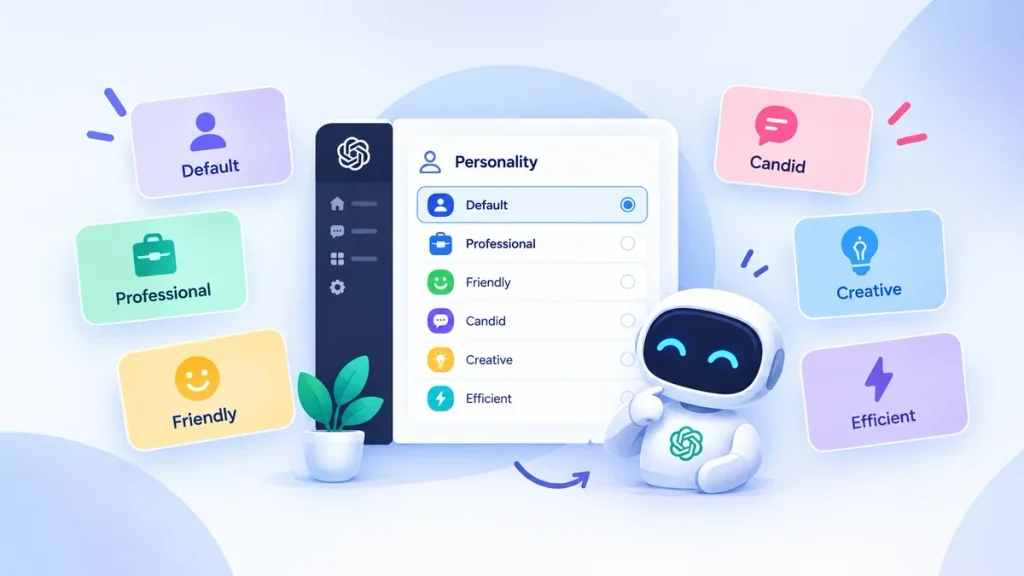
ChatGPT currently provides a Default style along with several named personalities. The available options can change as OpenAI updates the product, so your account may not always show exactly the same options.
Here is what the currently documented personalities are designed to do.
Default
Default is the standard ChatGPT style.
It provides a general communication style without strongly emphasizing a particular personality.
This can work well if you want ChatGPT to adapt naturally to different conversations.
Professional
Professional uses a polished and precise communication style.
It can be useful for:
- Business communication
- Workplace documents
- Professional writing
- Formal explanations
If you regularly use ChatGPT for work, this can provide a more formal starting point.
Friendly
Friendly provides a warmer and more conversational style.
It can be useful for everyday conversations, planning, reflection, and talking through ideas.
Candid
Candid is more direct and straightforward.
It is designed to focus on clear feedback, potential gaps, and practical next steps.
This can be useful when you want ChatGPT to give direct feedback on an idea, plan, or draft.
Quirky
Quirky uses a more playful and imaginative style.
It can be useful for:
- Brainstorming
- Creative writing
- Exploring unusual ideas
- Generating creative concepts
Efficient
Efficient is designed to be concise and direct.
It can be useful for:
- Technical tasks
- Troubleshooting
- Checklists
- Quick explanations
- Code-related questions
If you prefer getting to the point without a long introduction, this style may suit you.
Cynical
Cynical uses a dry, sarcastic communication style while still providing practical answers.
It may suit people who prefer a more irreverent tone during conversations and brainstorming.
Because ChatGPT’s features can change, check the Personalization menu in your own account for the personalities currently available to you.
How to Create Your Own ChatGPT Personality With a Prompt
Built-in personalities aren’t your only option.
You can also tell ChatGPT exactly how you want it to communicate.
For example, instead of saying:
Be friendly.
you could write:
Respond in a warm, natural, conversational tone. Use simple language, avoid unnecessary jargon, and give practical examples when they help.
The second instruction gives ChatGPT a clearer idea of what you mean by “friendly.”
Professional Personality Prompt
Try:
Use a professional and clear tone. Keep responses organized and practical. Avoid unnecessary filler and explain technical terms when needed.
Friendly Personality Prompt
Try:
Use a warm and conversational tone. Explain things naturally and make difficult topics easy for a beginner to understand. Avoid sounding overly formal.
Direct Personality Prompt
Try:
Give me the direct answer first. Keep explanations concise, use simple language, and avoid repeating information unless additional detail is necessary.
Natural Writing Prompt
If you want ChatGPT to produce more natural-sounding writing, you could try:
Write naturally and clearly. Avoid repetitive phrases, unnecessary corporate language, exaggerated enthusiasm, and long introductions. Prefer simple sentences and practical explanations.
The important part is being specific.
Instead of telling ChatGPT to “sound better,” explain what you actually want it to do differently.
How to Make ChatGPT Sound More Natural
If ChatGPT’s responses feel too formal, repetitive, or robotic, you can describe the qualities you prefer.
For example:
Use plain American English and a natural conversational tone. Keep the writing clear and easy to follow. Avoid unnecessary repetition, filler, exaggerated claims, and overly complicated sentences.
You can change this instruction depending on what you’re using ChatGPT for.
Someone writing blog content may want a different style from someone using ChatGPT for technical troubleshooting or business communication.
The clearer your instructions are, the easier it is to communicate your preferred style.
ChatGPT Personality vs. Custom Instructions
Personality and Custom Instructions may sound similar, but they serve different purposes.
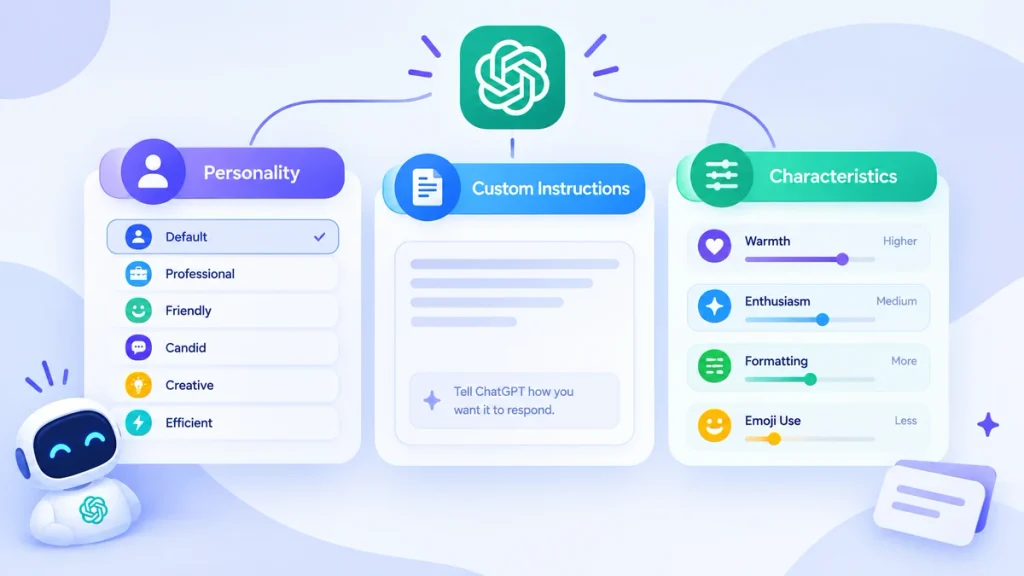
Personality provides a general communication style.
Custom Instructions let you provide additional information and preferences that can influence how ChatGPT responds.
For example, you could choose Professional as your personality and then use Custom Instructions to tell ChatGPT:
I am a beginner. Explain technical topics in simple language and use examples when useful.
This gives you a general tone along with more specific guidance.
OpenAI explains that personality works alongside saved memories and Custom Instructions, and these other instructions can affect how strongly the selected personality appears in a response.
ChatGPT Personality vs. Characteristics
Characteristics are another way to customize ChatGPT’s responses.
OpenAI describes Characteristics as controls that can fine-tune qualities such as:
- Warmth
- Enthusiasm
- Formatting
- Emoji use
These settings can work alongside personality, Custom Instructions, and saved memories.
Where available, you can access them through the Personalization settings.
For example, you might select Professional as your personality and then reduce enthusiasm or emoji use if you prefer a more restrained style.
A simple way to understand the difference is:
- Personality: sets the overall style and tone
- Characteristics: fine-tune specific response qualities
- Custom Instructions: provide additional preferences and context
These controls can complement each other rather than replacing one another.
Does Changing ChatGPT’s Personality Change What It Can Do?
No.
Changing ChatGPT’s personality does not give it new capabilities or remove existing ones. It also does not change the safety rules it follows.
For example, choosing Efficient doesn’t automatically make ChatGPT better at coding.
Choosing Professional doesn’t give ChatGPT access to private business information.
Choosing Friendly doesn’t make its answers automatically more accurate.
The main difference is how ChatGPT communicates its response.
There is also an important detail to remember: personality does not necessarily determine the style of every response.
If you ask ChatGPT to create code, an email, a résumé, or another specific type of content, your prompt and the task itself can influence the final response. OpenAI notes that task context can affect how personality appears in generated responses.
How to Choose a ChatGPT Personality for Different Tasks
There isn’t one personality that is right for every situation.
Your choice can depend on what you’re doing.
For Work and Business Writing
Professional may be useful for workplace communication, business documents, and formal writing.
For Brainstorming
Quirky can be useful when you want more playful ideas or unusual approaches.
For Quick Answers
Efficient may suit you if you prefer direct answers with less extra wording.
For Feedback
Candid can be useful when you want straightforward feedback about a draft, plan, or idea.
For Everyday Conversations
Friendly may provide a warmer and more conversational experience.
For General Use
Default can work well if you don’t need a strongly customized communication style.
The goal isn’t to find one universally “best” personality. It is to choose a style that fits the way you use ChatGPT.
Can You Change ChatGPT’s Personality Later?
Yes.
You can return to Personalization and change the Base style and tone setting.
OpenAI says that the change applies across chats, including existing conversations.
You don’t have to stick with one personality permanently.
For example, you may prefer Professional for work and another style when you’re brainstorming or having a casual conversation.
What If ChatGPT Doesn’t Follow the Personality You Selected?
Sometimes ChatGPT may not respond exactly as you expect after you select a personality.
That’s because personality is only one part of the context that can influence a response.
Your prompt, Custom Instructions, saved memories, and the task you’re asking it to perform can all affect the final answer.
If the response isn’t matching your preferred style, make your instruction more specific.
Instead of:
Be more professional.
try:
Use a formal but readable tone. Avoid slang, keep the answer concise, and organize important information with clear headings.
The second instruction gives ChatGPT specific behaviors to follow.
Common Mistakes When Giving ChatGPT a Personality
1. Being Too Vague
Instructions such as “sound better” don’t provide much useful direction.
Describe the tone and behavior you actually want.
2. Giving Conflicting Instructions
If you ask for extremely short answers but also request detailed explanations of every point, your instructions may conflict.
Prioritize the preference that matters most.
3. Expecting Personality to Improve Accuracy
A personality controls communication style. It doesn’t guarantee that every answer will be correct.
For important information, verify the details.
4. Assuming Personality Changes Capabilities
It doesn’t.
Personality is primarily about the way ChatGPT communicates.
5. Adding Too Many Rules
You don’t need a huge list of instructions.
A few clear preferences are often easier for ChatGPT to follow than dozens of overlapping rules.
Frequently Asked Questions
Can I give ChatGPT my own personality?
You can customize ChatGPT’s response style using its built-in personality options and your own instructions. You can describe the tone, level of detail, formatting, and communication style you prefer.
How do I change ChatGPT’s personality?
Open ChatGPT, go to Personalization, and use Base style and tone to select a personality. The exact interface may change as ChatGPT is updated.
Can I make ChatGPT more professional?
Yes. You can select the Professional personality or give ChatGPT specific instructions describing the professional tone you want.
Can I make ChatGPT more friendly?
Yes. You can select Friendly or provide your own instructions for a warmer, more conversational style.
Does ChatGPT personality change its intelligence?
No. Changing personality changes the way ChatGPT communicates rather than giving it new capabilities.
Are ChatGPT personality and Custom Instructions the same?
No. Personality provides a general style and tone, while Custom Instructions let you provide additional preferences and information about how you want ChatGPT to respond.
Can I customize ChatGPT beyond its personality?
Yes. Where available, Characteristics can be used to fine-tune aspects such as warmth, enthusiasm, formatting, and emoji use.
Final Thoughts
Learning how to give ChatGPT a personality is mainly about making the tool communicate in a way that fits your preferences.
You can start with a built-in personality through the Personalization settings, then use Characteristics or more specific instructions if you want additional control.
You don’t need a complicated set of instructions to get started.
A simple description of the tone you want, the amount of detail you prefer, and the way you want information presented can make your conversations feel more tailored to your needs.
And if your preferences change, you can always adjust them later.
If you’re learning more about ChatGPT, you can also explore our guides on ChatGPT Projects, ChatGPT Study Mode, and ChatGPT Search.
Want to explore ChatGPT’s features?
Try the official ChatGPT experience and experiment with the personalization options available in your account.
Try ChatGPT →