I needed to edit an image and remove its background, so I decided to try a few different tools instead of guessing which one would work best. I tested Canva, ChatGPT, and CapCut on the same task. Canva worked best for me, while the other tools had limitations that affected my experience.
In this Canva Pro review, I’ll share what happened during my test, explore the features each tool offers, compare their pricing in Pakistani rupees, and explain which option may suit different needs. I also discuss the limitations of my test so you can decide whether Canva Pro is worth paying for your own work.
How I Tested Canva
I used the same image and the same task in each tool: remove the background and continue editing the image. I compared how easy each tool was to use, how clean the result looked, and whether any usage limits or other obstacles interrupted the process.
This was a small hands-on test involving just one image, not a comprehensive software review. I did not test every feature or subscription plan, and I did not measure editing time in seconds. The pricing and feature information discussed later is separate from my personal test, and details may change. Before subscribing, check the official pricing page for the latest plan information.
My Experience With Canva
Canva was the best fit for my image. The background came off cleanly, and I could keep editing in the same place without exporting the file and opening another app. For someone who wants to remove a background, adjust the image, and place it into a finished design, that single workspace saved me time.
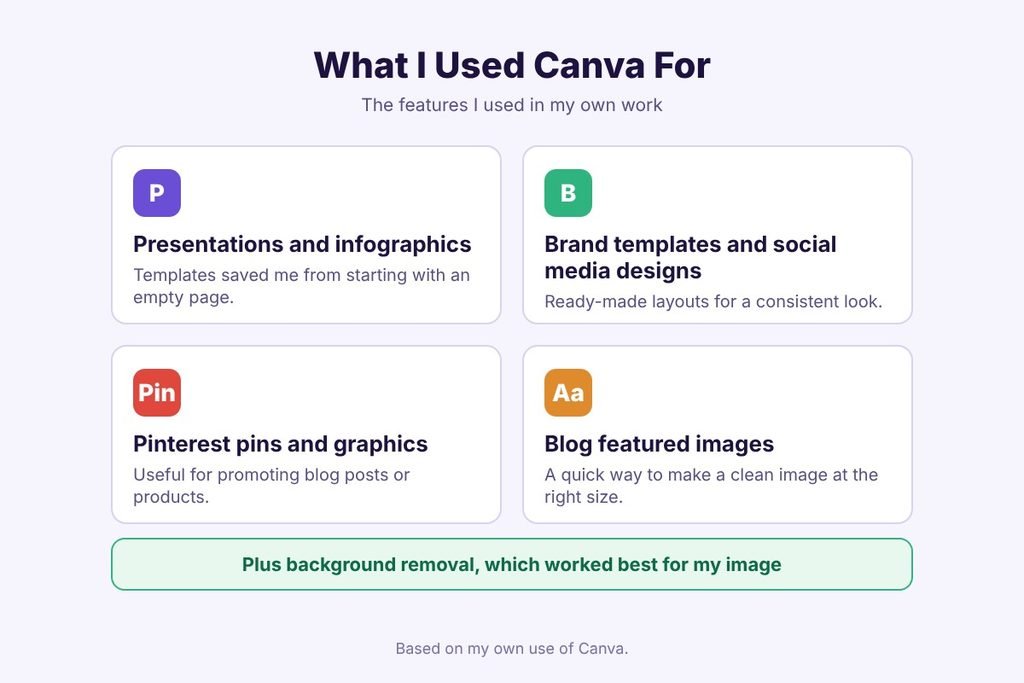
The features I used or relied on most were:
- Presentations and infographics: I used Canva to create these, and the ready-made templates meant I did not have to start from an empty page.
- Brand templates and social media designs: the layouts make it easier to keep a consistent look across posts.
- Pinterest pins and graphics: useful if you promote blog posts or products on Pinterest.
- Blog featured images: a quick way to make a clean featured image at the right size for a blog.
What I liked most is that these features live together. I did not have to learn a different tool for a presentation, a Pinterest pin, and a featured image.
What Went Wrong With the Other Tools
The other tools had more mistakes for my kind of task.
ChatGPT hit a usage limit. I could only work on about 7 or 8 images before the limit stopped me. If you need several attempts on the same image, or you want to edit a batch of images, that limit gets in the way. It is a strong tool for many jobs, but for repeated image editing, it slowed me down.
CapCut is mainly a video editor, and that matters for how you use it. Its features include:
- Social media video editing: create videos for TikTok, YouTube, Instagram, and other platforms.
- Speed control: speed up, slow down, or create smooth slow motion.
- AI background removal: remove video backgrounds using the available editing tools.
These are useful if you work with video. My task was a single image, so CapCut was not the natural choice, and Canva fit the job better.
Canva vs ChatGPT vs CapCut: Quick Comparison
| Tool | Best For | My Experience |
|---|---|---|
| Canva | Image editing, presentations, social media graphics, Pinterest pins, and blog featured images | Gave me the cleanest background removal result and let me continue editing in the same workspace. |
| ChatGPT | Writing, brainstorming, and general AI assistance | I encountered a usage limit after working on around 7–8 images. |
| CapCut | Video editing for TikTok, YouTube, Instagram, and other platforms | It was less suitable for my single-image editing task because its main focus is video. |
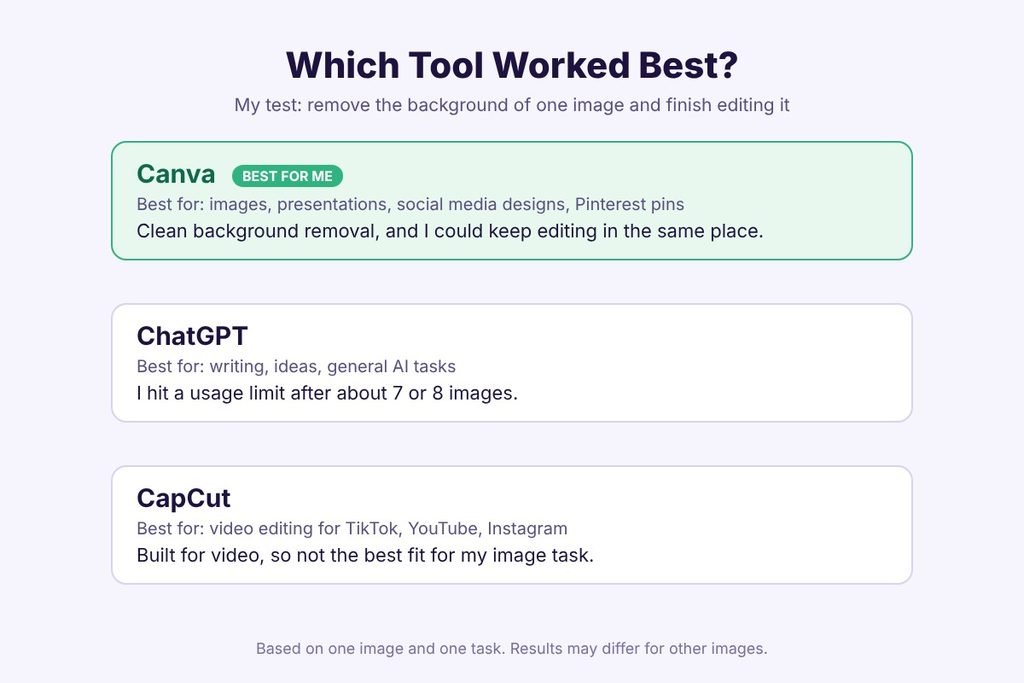
This comparison is based on my limited testing and the tools’ general purposes. Your experience may vary depending on the image, features available, and subscription plan.
Canva Pricing in Pakistan
If you are a student, freelancer, or content creator, the price of a design tool can make a difference. Before choosing a subscription, compare the monthly and yearly options and consider which features you actually need.
Canva Pricing
Canva offers a free plan as well as paid plans with additional design features, premium content, and AI tools. Canva Pro may be useful if you regularly create blog featured images, social media graphics, presentations, or Pinterest pins.
Canva also offers a Business plan for users who need more advanced collaboration and brand management features. If you work alone, start by checking whether Canva Free meets your needs before upgrading.
For current pricing in Pakistan, visit the official Canva pricing page and check the amount displayed for your account.
CapCut Pricing
CapCut offers free and paid options for video editing. The available subscriptions and prices can vary by region and device, so check the official CapCut pricing page before subscribing.
For creators who regularly edit videos, a paid plan may be worth considering. For a simple image-editing task like mine, however, a video-focused subscription may not be necessary.
ChatGPT Pricing
ChatGPT offers Free and paid subscription plans. The available plans, prices, and usage limits can change over time.
Check the official ChatGPT pricing page or the subscription options shown in your account before paying. Remember that a plan’s image-related limits may differ from its text-related limits.
Which Tool Offers Better Value?
The best value depends on what you create most often. Canva is a practical option for everyday graphic design, CapCut is aimed primarily at video editing, and ChatGPT is useful for writing, brainstorming, and other AI-assisted tasks.
Rather than choosing the cheapest subscription automatically, start with the free options and test the features you need. Upgrade only when a paid feature solves a real problem in your workflow.
Yearly Cost Comparison
When comparing subscriptions, it helps to look beyond the monthly price. A yearly plan may cost less than paying month by month, but the actual savings depend on the provider’s current pricing and available offers.
Before subscribing, compare the annual payment with the cost of twelve monthly payments. Also check whether the plan includes the features you need and whether the subscription renews automatically.
For Canva, CapCut, and ChatGPT, prices can vary by region, subscription type, and purchase method. Check each tool’s official pricing page before making a final decision.
Which Plan Should You Choose?
The right plan depends on how you use these tools and how often you need their features.
- Canva Free: A sensible starting point for students and beginners who create graphics occasionally and want to explore the available tools before paying.
- Canva Pro: Worth considering if you regularly design blog images, Pinterest pins, social media posts, or other visual content and need its paid features.
- CapCut: A better fit for creators whose main work involves editing videos for platforms such as YouTube, TikTok, or Instagram.
- ChatGPT Free or a paid plan: Consider it for writing, brainstorming, and AI-assisted tasks. Review the usage limits and features of each available plan before upgrading.
My small test suggested that Canva suited my background-removal task better than the other tools I tried. However, I tested only one image, so this experience alone cannot prove that Canva Pro is the best choice for everyone.
If you are just starting out, try the free options first. Upgrade only when you know which paid features will genuinely help your work.
Canva Features I Didn’t Test
Canva offers a range of features beyond background removal, including presentation templates, brand tools, AI-powered features, and collaboration options. However, I did not test all these features during my hands-on trial.
My main focus was removing an image background and continuing to edit the image in the same workspace. I also considered how Canva could fit into everyday content creation, such as designing blog featured images, Pinterest pins, and social media graphics.
Because I did not test every feature or subscription plan, I cannot make a personal claim about how well each one performs. If you are considering Canva Pro, explore the features included in the current plan and decide whether they match your specific needs.
Features, plan availability, and subscription terms may change, so check Canva’s official pricing page before upgrading.
Tips for Testing Image Editing Tools
If you are choosing an image editing tool for your blog, freelance work, or social media content, try these simple steps before paying for a subscription.
1. Use the Same Image
Test each tool with the same image and editing task. This makes it easier to compare the results fairly.
2. Check the Final Result
Look closely at the edges, especially around hair, hands, and other detailed areas. A background may disappear, but small imperfections can still affect the final image.
3. See What You Can Edit Next
Check whether you can continue editing the image in the same workspace or need another tool to finish the job. A smoother workflow can save effort.
4. Check Free-Plan Limits
Before relying on a tool, find out whether it has usage limits, feature restrictions, or export limitations that could interrupt your work.
5. Compare the Cost With Your Needs
Do not subscribe just because a tool offers more features. First, decide which features you actually need and whether the free version is enough.
6. Test More Than One Image
Whenever possible, try different images before making a decision. A tool that works well on one image may produce different results with another.
A short test can help you understand whether a tool suits your workflow, but it cannot guarantee the same results for every project.
Limitations of My Test
My comparison was based on a small hands-on test using one image and one main task: removing the background and continuing to edit the image. It helped me understand which tool suited my immediate needs, but it was not a complete comparison of all three platforms.
I did not test multiple image types, measure editing speed, or evaluate every feature available in the free and paid plans. I also did not conduct a long-term test of any subscription.
My experience with Canva, ChatGPT, and CapCut may differ from yours depending on the image you use, the features available to your account, and the plan you choose. Pricing, usage limits, and features can also change over time.
For these reasons, my findings should be treated as personal observations rather than a definitive ranking. If you are choosing a tool for regular work, test it with your own images and check the current plan details before subscribing.
Frequently Asked Questions
Is Canva Pro worth it?
Canva Pro may be worth it if you regularly create graphics and need the premium features included in the plan. If you only edit images occasionally, Canva Free may be enough. The right choice depends on your workload and budget.
What is the difference between Canva Free and Canva Pro?
Canva Free provides basic design tools, while Canva Pro includes additional premium features and content. The exact features available can change, so check Canva’s official pricing page before subscribing.
Can Canva remove an image background?
Yes, Canva offers a background removal feature. In my test, it removed the background cleanly and allowed me to continue editing the image in the same workspace. Feature availability may depend on your current plan.
Is Canva better than CapCut for image editing?
It depends on the task. Canva is designed for a broad range of graphic design work, while CapCut focuses primarily on video editing. In my small test, Canva suited my background-removal task better than CapCut.
Can I use Canva for blog images and Pinterest pins?
Yes, Canva can be used to create blog featured images, Pinterest pins, social media graphics, and other visual content. Templates can also help beginners get started with their designs.
Should beginners pay for Canva Pro?
Beginners should consider trying Canva Free first. If they regularly need paid features and those features save time or improve their workflow, upgrading may make sense. Compare the current subscription cost with your actual needs before deciding.
Final Verdict: Is Canva Pro Worth It?
After trying Canva, ChatGPT, and CapCut for the same background-removal task, Canva worked best for my needs. It gave me a clean result and allowed me to continue editing the image in the same workspace, which made the process more convenient.
However, this was a small test involving just one image. I did not test every feature or subscription plan, so I cannot say that Canva Pro is the best option for everyone.
If you regularly create blog featured images, Pinterest pins, presentations, or social media graphics, Canva Pro may be worth considering. Its value depends on how often you use the additional features and whether they justify the subscription cost for you.
If you are a student or beginner working with a limited budget, start with Canva Free. Explore its available tools first, then consider upgrading if you need features included in the paid plan.
My recommendation: Choose a tool based on your actual work rather than its popularity. Test the features you need, compare the current prices, and upgrade only when a paid plan offers clear value for your workflow.